
Using Auto Patch Advance in MainStage
Some KeyboardTEK MainStage concerts include an Auto Patch Advance feature. This allows MainStage to advance to the next patch automatically at a specific musical moment, usually after the player plays a certain note.
Auto Patch Advance acts like a virtual foot switch. Instead of manually advancing patches with a pedal or a key command, the programming can move to the next patch automatically while you continue playing.
Most KeyboardTEK shows do not use this feature. If your show uses Auto Patch Advance, you may see ** or *AA after a patch name.
Auto Patch Advance is optional. If you prefer to change patches manually with a foot switch or the low A on the keyboard, you can skip this setup.
Before You Begin
For KeyboardTEK Mainstage Concerts that use Auto Patch Advance, the Auto Advance script is already included in the programming, and the license to use it is included with your rental.
In most cases, there is nothing additional to install. You only need to set up the IAC Driver on your Mac.
The IAC Driver is a virtual MIDI device built into macOS. It allows MIDI data to be routed inside the computer without using an external hardware device. Auto Patch Advance requires this virtual MIDI routing in order to work in MainStage.
Optional: Installing the Auto Patch Advance Script for Your Own Programming
You can skip this section if you are only using Auto Patch Advance with KeyboardTEK programming.
If you want to use Auto Patch Advance for your own MainStage programming outside of your KeyboardTEK rental, you will need to purchase the script separately at 441K Auto Patch Advance MIDI FX Script
After downloading the script package:
- Unzip the downloaded file.
- Locate the file named 441K Auto Patch Advance.pst.
-
Move that file to this folder on your Mac:
~/Music/Audio Music Apps/Plug-In Settings/Scripter/ - If the Scripter folder does not already exist, create it.
After installation, Auto Patch Advance will appear in MainStage’s Scripter MIDI FX plug-in dropdown menu.
Set Up the IAC Driver on Your Mac
You only need to do this setup once on your computer.
-
Open Audio MIDI Setup.
You can find it here:
Applications > Utilities > Audio MIDI Setup
-
If the window opens to Audio Devices, switch to the MIDI view by choosing:
Window > Show MIDI Studio
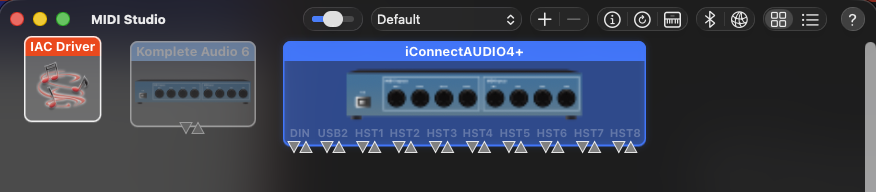
- In the MIDI Studio window, find the IAC Driver icon.
- Double-click IAC Driver to open its settings.
-
Check the box labeled Device is online.
Create the Auto Patch Advance Port
After opening the IAC Driver settings:
- In the Ports section, click the + button.
- A new port will be created, usually named IAC Bus 1.
- Double-click the new port name.
-
Rename it exactly:
AUTO PATCH ADVANCE
- Click Apply.
The port name must match exactly. Use all capital letters and include the spaces:
AUTO PATCH ADVANCE
Once this is complete, Auto Patch Advance should work in KeyboardTEK programming without any additional setup.

If MainStage Becomes Slow or Has Latency
If Auto Patch Advance causes noticeable latency or makes MainStage slow down significantly, there may be a MIDI loop or an unassigned MIDI routing issue.
Check Assignments & Mappings
- Open MainStage.
- Go to Assignments & Mappings.
- Look for any assignment labeled Unassigned.
- Highlight the unassigned item.
- Press Delete.
In some cases, MainStage may not fully delete the assignment. Instead, it may change the mapping to Block. That is okay. Blocking the assignment can close the MIDI loop that may be causing the slowdown.
Disable “Send Unassigned MIDI to All Channel Strips”
For Auto Patch Advance to work properly, Send unassigned MIDI to all Channel Strips should be disabled.
To check this setting:
- Select the Concert Level in MainStage. This is the top-level folder in the Patch List.
- Open the Concert Settings.
- Go to the MIDI tab.
- Find Send unassigned MIDI to all Channel Strips.
- Make sure it is unchecked.
This setting must be turned off for proper Auto Patch Advance functionality.
Quick Checklist
Before using Auto Patch Advance:
- Confirm your show actually uses Auto Patch Advance.
- Look for
**or*AAafter patch names. - Open Audio MIDI Setup.
- Go to Window > Show MIDI Studio.
- Open IAC Driver.
- Check Device is online.
- Create or confirm a port named exactly AUTO PATCH ADVANCE.
- In MainStage, disable Send unassigned MIDI to all Channel Strips.
- Check Assignments & Mappings for any unassigned items if you experience latency.
Still Having Trouble?
Contact KeyboardTEK Support if:
- Your show uses Auto Patch Advance but patches are not advancing automatically.
- You do not see the IAC Driver in Audio MIDI Setup.
- You are unsure whether the IAC port is named correctly.
- MainStage becomes slow or unresponsive after enabling Auto Patch Advance.
When contacting support, please include:
- The name of the show
- Your macOS version
- Your MainStage version
- A screenshot of your IAC Driver settings
- A screenshot of the relevant patch names showing
**or*AA, if applicable