
Sustain Pedal Is Reversed or Not Working in MainStage
Sustain Pedal Is Reversed or Not Working in MainStage
If your sustain pedal is not working correctly in Apple MainStage, it is usually caused by one of these issues:
- The pedal is plugged into the wrong input on your keyboard.
- The keyboard is not sending sustain pedal data to MainStage.
- The pedal polarity is reversed.
- The MainStage sustain pedal screen control needs to be reassigned.
- The sustain pedal screen control is assigned, but not mapped to 64 (Sustain).
Follow the steps below in order. Start with the quick physical checks, then move into MainStage only if needed.
Quick Check: Is the Pedal Reversed?
If the pedal sustains when your foot is off the pedal, and stops sustaining when your foot is down, the pedal polarity is reversed.
First, check whether your physical pedal has a polarity switch on the bottom or side. If it does, flip the switch and test again.
Common sustain pedals with polarity switches include:
- Roland DP-10
- On-Stage KSP100
- Nektar NP-2
- Proline Universal
Some pedals do not have a polarity switch. Examples include:
- Yamaha FC4
- Kurzweil KP-1
If your pedal does not have a polarity switch, the reversed behavior may have happened because MainStage was opened, closed, or saved while the pedal was pressed down.
To help prevent this:
- Do not press any keys or pedals while saving your MainStage concert.
-
We recommend turning Auto Save off in MainStage preferences.
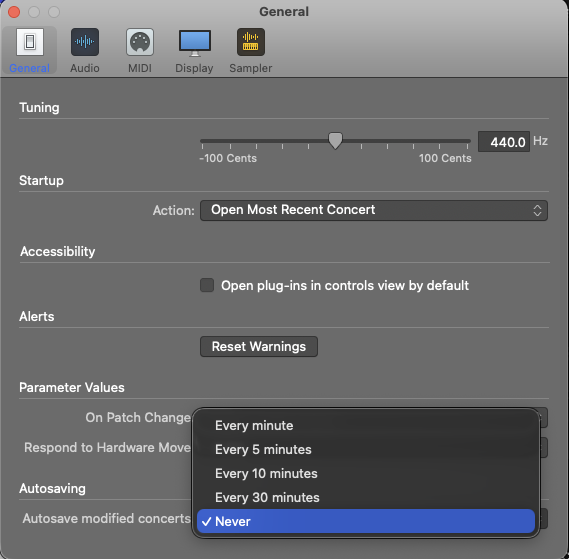
If the pedal is still reversed after checking the physical pedal, continue through the steps below.
Step 1: Confirm MainStage Is Receiving the Pedal
Before changing MainStage settings, confirm that MainStage is receiving MIDI data from your sustain pedal.
- Make sure the pedal is plugged into the keyboard’s Sustain or Hold input.
- Open your MainStage concert.
- Press the sustain pedal.
-
Watch the MIDI In display at the top center of the MainStage window.

If MIDI data appears when you press the pedal, the keyboard is sending pedal data to MainStage. Continue to Step 2: Reassign the Sustain Pedal in Layout Mode.
If no MIDI data appears, MainStage is not receiving the pedal. This is usually a hardware or keyboard-controller setup issue. Check the pedal connection, try a different pedal, or consult your keyboard’s manual.
MainStage cannot use the pedal until the keyboard is sending pedal data.
> Note: If your sustain pedal is plugged into an assignable pedal input instead of a dedicated Sustain or Hold input, you may need to configure that pedal input in your keyboard’s menu so it sends CC#64 Sustain.
Step 2: Reassign the Sustain Pedal in Layout Mode
For most keyboards, the sustain pedal will work automatically in MainStage. If MainStage is receiving MIDI from the pedal but the pedal is not sustaining correctly, reassign the pedal in Layout mode.
- In MainStage, click Layout in the upper-left corner.
- Click the on-screen sustain pedal icon. It is usually located below or beside the on-screen keyboard.
- Press Delete on your keyboard to remove the sustain pedal icon.
If all three pedal icons disappear, press Cmd+Z or choose Edit > Undo to restore them. Then Control+click the grouped pedals, choose Ungroup, and delete only the sustain pedal icon.
- In the Screen Controls Palette below the workspace, open the Shelf Controls tab.
- Drag a new Sustain Pedal icon into the workspace.
- Resize or position it as needed.
- With the new sustain pedal icon selected, click Assign in the Screen Control Inspector so it turns red.
- Press your physical sustain pedal several times.
- Confirm that the on-screen sustain pedal responds to your physical pedal movement.
- Click Assign again to turn assignment mode off.
Test the pedal on a patch that uses sustain.
- If the pedal now works correctly, save your MainStage concert.
- If the pedal still does NOT sustain, continue to the next step.
When assigning buttons or foot switches, press the control three times at a steady pace. Do not press too quickly. This helps MainStage correctly learn the MIDI message being sent.
When assigning a knob, fader, or expression pedal, move it through its full range of motion so MainStage can learn the full control range.
Step 3: Map the Pedal to 64 (Sustain)
Follow these steps only if MainStage is receiving MIDI from the pedal, but the pedal still does not sustain your patches after reassignment.
- Click Edit at the top of the MainStage application.
- In the Patch List, select the top-level concert folder. This is usually the orange folder with the show title and MainStage icon.
This is the Concert Level. Changes made here apply to every patch in the concert.
- Click the on-screen sustain pedal icon.
- Make sure the sustain pedal icon is highlighted blue.
- In the Screen Control Inspector below the workspace, select the third tab. It may say Sustain, Unassigned, 64 (Sustain), or another label.
If you do not see the Screen Control Inspector, go to View > Show Inspectors.
- In the second column, scroll to the bottom and select Send to All.
- In the next column, select your keyboard controller. This may appear as your keyboard name, 88 Keyboard Controller, or another MIDI device name.
- In the final column, scroll down and select 64 (Sustain).
- Select any patch and test the pedal.
At this point, the sustain pedal should work normally.
If the pedal still does not work, return to Layout mode and repeat the reassignment steps in case something was missed.
If the pedal works but is still reversed, continue to the next section.
Step 4: If Sustain Is Still Reversed, Invert the Pedal Signal
Use this section only after you have confirmed that the sustain pedal is assigned and mapped to 64 (Sustain).
- In Edit mode, select the top-level Concert Level folder.
- Click the on-screen sustain pedal icon.
- In the Screen Control Inspector, select the third tab and confirm that it says 64 (Sustain).
- In the mapping columns, reconfirm the following path:
Send to All > Your Keyboard Controller > 64 (Sustain)
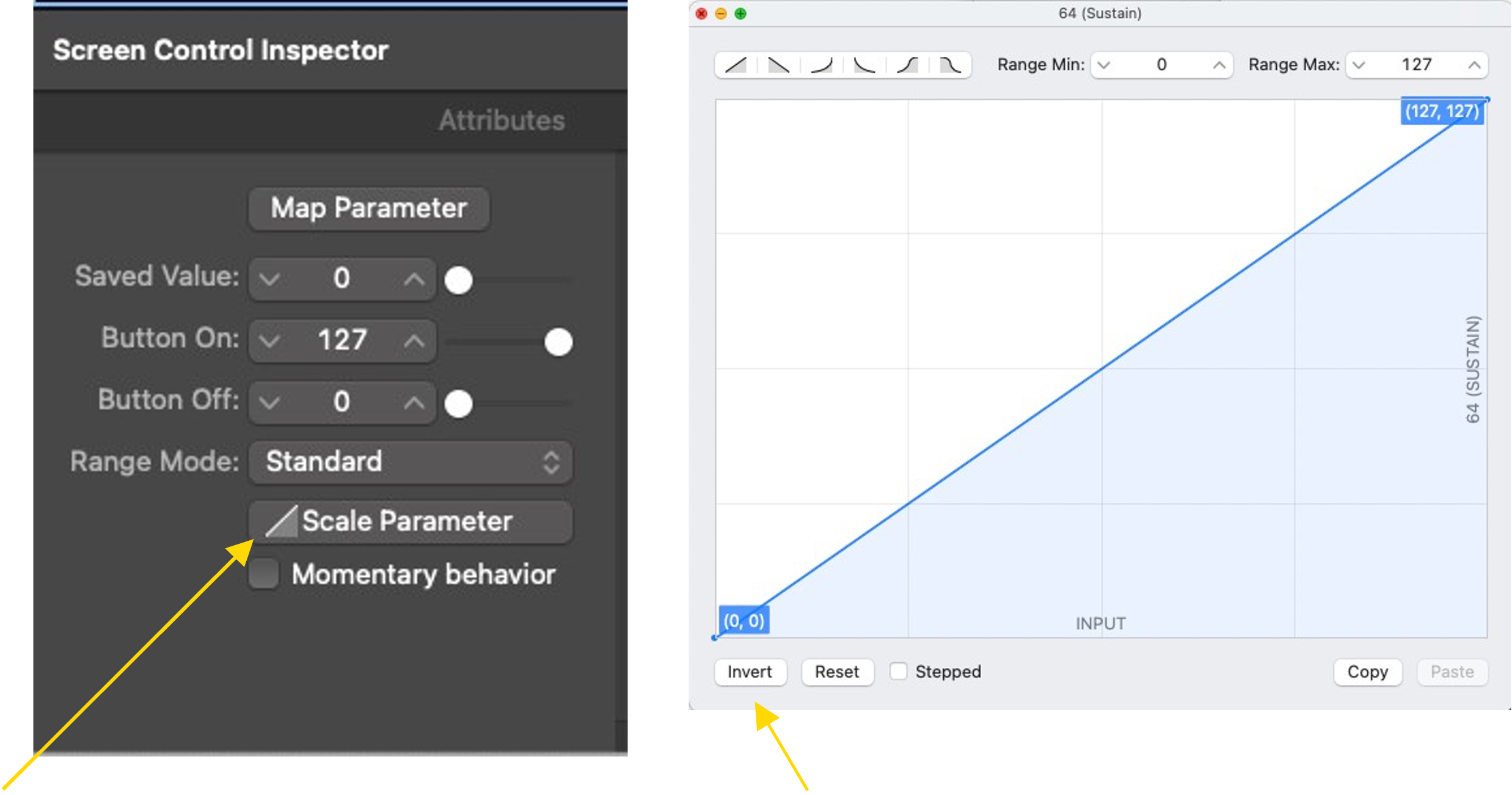
- In the first section of the Screen Control Inspector, click Scale Parameter.
- In the window that opens, click Invert in the lower-left corner.
- Test the pedal.
- Save your MainStage concert once the pedal is working correctly.
If the Pedal Still Does Not Work
If you have followed all steps and the issue continues, the problem may be with one of the following:
- The sustain pedal itself
- The keyboard’s pedal input
- The keyboard’s pedal settings
- The MIDI connection between your keyboard and MainStage
KeyboardTEK can help with MainStage setup related to our programming, but we cannot fully troubleshoot individual hardware setups. If MainStage is not receiving MIDI data from the pedal, please consult your keyboard manual, test another pedal, or contact your keyboard manufacturer for hardware-specific support.
We strongly recommend keeping a backup sustain pedal available. Sustain pedals are relatively inexpensive, and having a backup can prevent rehearsal or performance issues.
Apple MainStage Help
For general MainStage questions not specific to KeyboardTEK programming, you can also use Apple’s built-in MainStage Help. In MainStage, choose Help > Quick Help or Help > MainStage Help.
Contacting KeyboardTEK Support
Contact KeyboardTEK Support if MainStage is receiving MIDI from the pedal, but the pedal still does not work after reassignment, mapping, and polarity inversion.
When contacting support, please include:
- Your keyboard model
- Your sustain pedal model
- Whether the pedal is plugged into a dedicated Sustain/Hold input or an assignable pedal input
- Whether the MIDI In display changes when you press the pedal
- Whether the pedal is not working at all or is reversed
- Whether the on-screen sustain pedal moves/lights up when you press the physical pedal